How to Apply for a Business Account
By creating a business account, you will be able to use all of FarmAny’s services. This guide explains how to apply for a business account and how to register products and stores. For an overview of business accounts and their benefits, see here.
Preparation
You need to be registered and logged in as a user on FarmAny. If you have not yet registered, please do so from the link below.
Applying for a Business Account
Enter the required information in the application page.
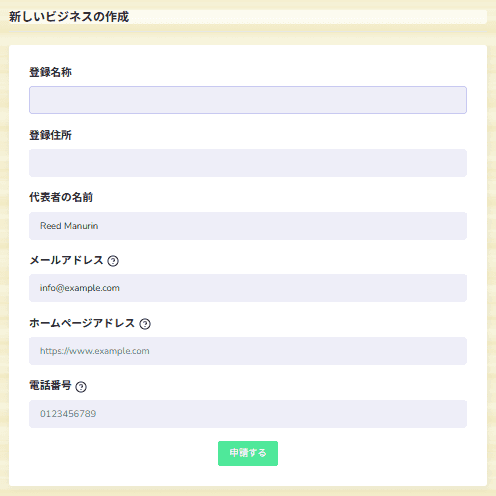
Clicking the Apply button creates a provisional registration and takes you to the main page of the business account. For identity verification, please upload an image of a document that can confirm your business information, such as a registration certificate. For sole proprietorships, upload a copy of your ID. If you have any questions about document submission, please contact us via Support.
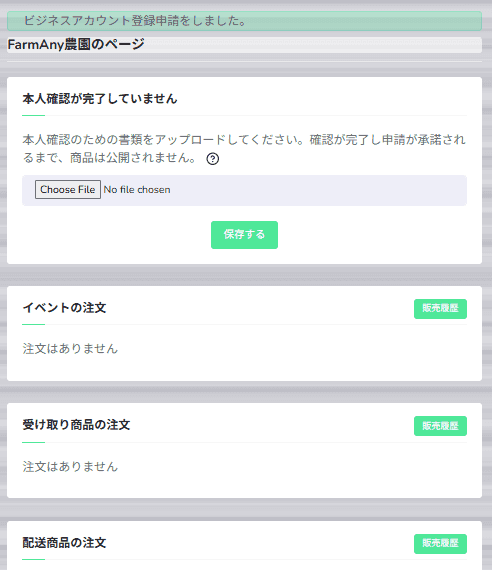
Once you upload your verification documents, your application is complete. You will receive a notification once it is approved, so please wait. You can begin registering products or stores even before approval, but they will not be published. Once your business account is approved, they can be made public.
Registering Products
There are three types of products: “Pickup Products,” “Shipping Products,” and “Events.”
For details on the differences between each type, please see here. Add products according to your needs. You can add products from the burger menu on the business page.
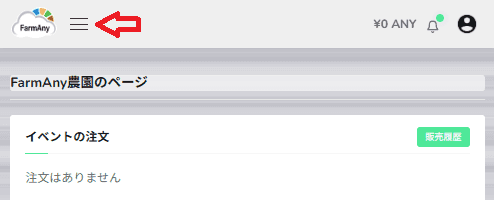
When the burger menu expands, select “Post a Product.”
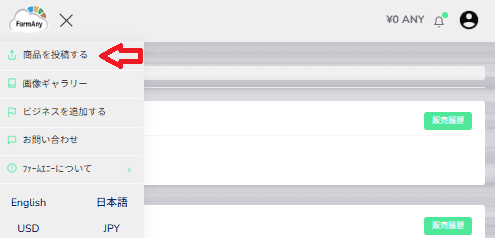
Select the product type and enter the required information.

Products can also be added from the lower section of the main page.
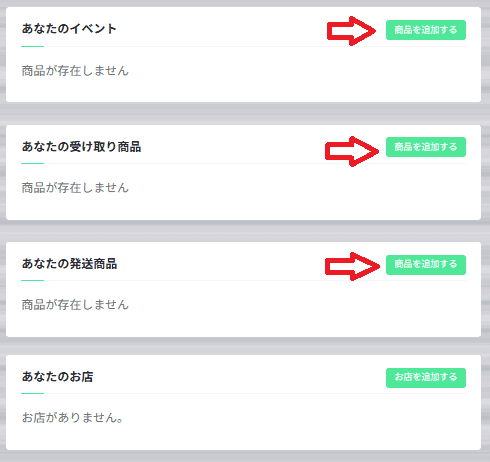
Registering Stores (Affiliated Stores)
With a business account, you can register stores (affiliated stores). For details on the benefits of registering affiliated stores, see here. You can add a store from the lower section of the main page.
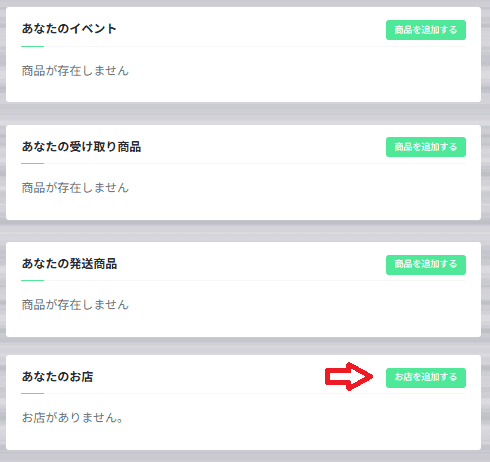
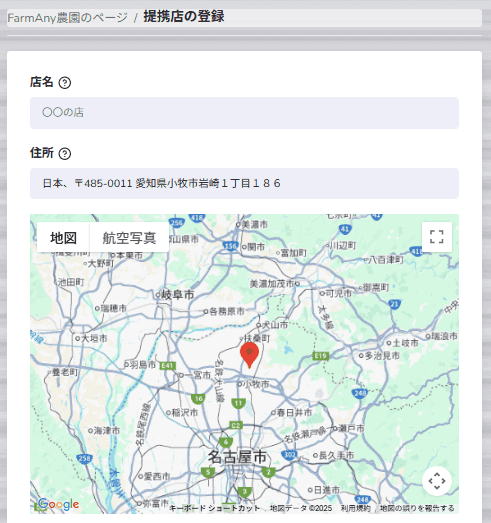
If you have a physical store, enter the store name and address. If you do not have a physical store, enter your business registration address. You can register multiple stores. Fill in the required information to register your store.
If you have any questions, please contact us via Support.