Payment Using AnyCredit at Stores
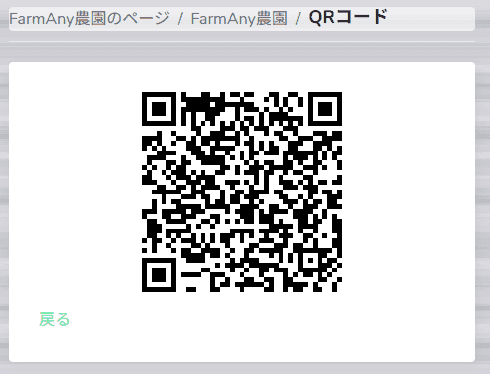
When you create a store under your business account, you can receive payments from users using AnyCredit. This function can be used for various payment scenarios, such as selling products at your physical stores, or when selling at markets and events. By printing and carrying the QR code from your store page, you can easily receive payments from users anywhere.
For instructions on how to apply for a business account and register a store, please refer to here.
Preparing the QR Code
Under the “Your Stores” section of the Business Account Dashboard, the stores you’ve registered will be displayed. Each store is automatically assigned a QR code, and by clicking the icon in the right corner, you can view that store’s QR code page.
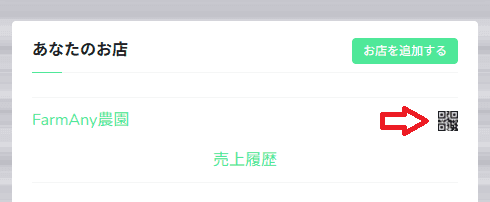
Store payment QR code
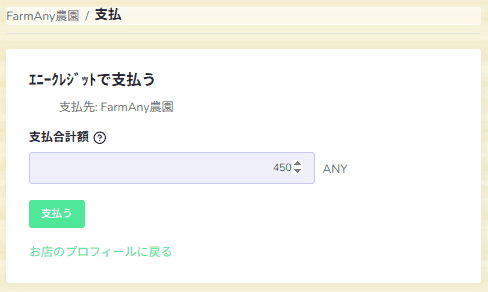
Process of the Store Payment
When a user scans the QR code, they’ll be directed to the store payment page. They can enter the payment amount there, confirm it together with you, and then finalize the payment. Please make sure that you and your customer check the payment amount before placing the payment.
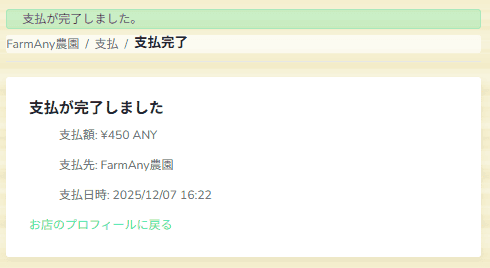
Once the payment is completed, the payment details will be displayed.
To confirm the payment on the store side, open the sales history.
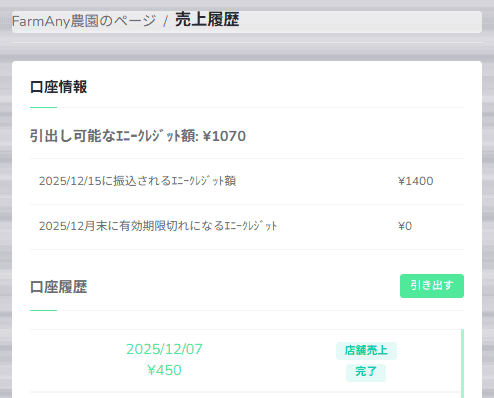
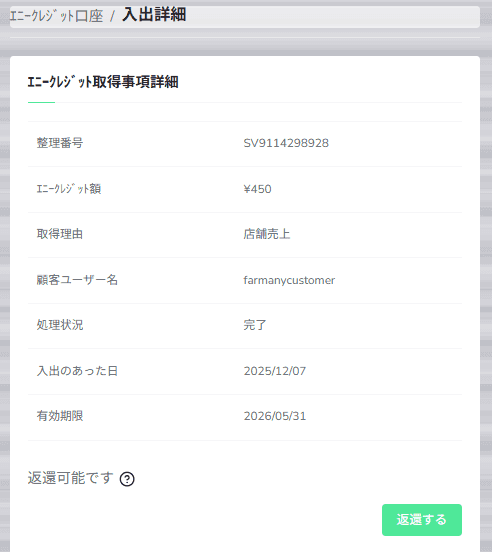
You can view the payment details here. If, for any reason, you need to cancel the payment and refund the AnyCredit to the user, the refund can be processed from this page.
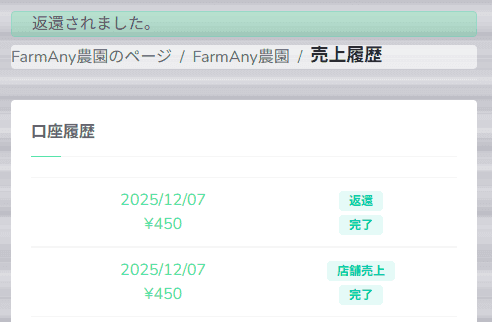
Once the refund process is complete, the AnyCredit will be returned.
For inquiries, please contact us via Support.